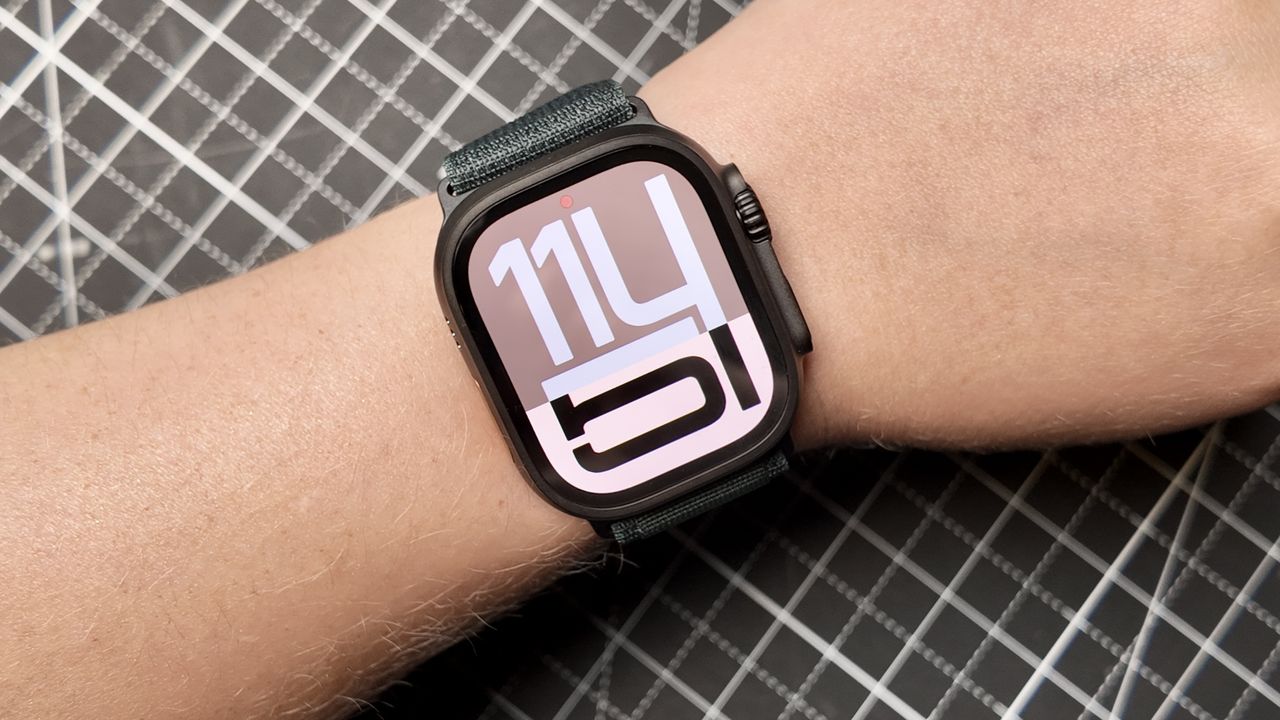
The Apple Watch continues to be a leading choice among smartwatches, offering unique features that enhance its integration with the iPhone. While the default settings provide a functional experience, adjusting specific preferences can significantly improve usability. Here are seven essential settings to modify immediately for a better Apple Watch experience.
1. Customize App Notifications
One of the first adjustments to consider is which apps are permitted to send notifications to your Apple Watch. By default, all apps installed on your iPhone can push notifications, which may not be ideal. To refine your settings, open the Watch app on your iPhone and navigate to Notifications. Under the “Mirror iPhone Alerts From” section, disable notifications for apps that are not essential. This way, your watch will only alert you for important messages or work-related notifications.
2. Extend Wake Duration
The default wake duration on the Apple Watch is relatively short, which can be frustrating when attempting to read longer notifications or check information. Increasing this duration can enhance your user experience. Access the Watch app on your iPhone, go to Display & Brightness, tap on Wake Duration, and select the maximum option of 70 seconds. Alternatively, consider disabling the Always On display and relying on the Raise to Wake feature, which conserves battery life while ensuring you have sufficient time to view notifications.
3. Turn Off Stand Reminders
The stand reminder notification can be intrusive, particularly if you are engaged in a task. While the intention behind this feature is to encourage movement, it can become bothersome. To disable stand reminders, open the Watch app on your iPhone, navigate to Activity under the My Watch tab, and turn off Stand Reminders. You may also disable other activity-related notifications if they do not suit your preferences.
4. Utilize Different Watch Faces with Focus Modes
Apple Watch offers a variety of customizable watch faces, which can be set to change automatically based on your location or activities through Focus modes. For instance, a specific watch face can be activated when you are at the gym, while another can appear when you are at home. To set this up, create or edit a Focus mode in your iPhone’s Settings, choose the desired watch face, and specify when that Focus should activate. This feature adds a personalized touch to your watch experience.
5. Activate Hypertension Notifications
Apple has introduced a health feature that can alert users to potential hypertension by analyzing heart rate patterns over a 30-day period. To enable this feature, open the Health app on your iPhone, tap your profile icon, and navigate to Health Checklist. Look for Hypertension Notifications and complete the setup by confirming your age and any prior hypertension diagnosis. This feature can serve as an early warning, prompting you to consult a healthcare professional if necessary.
6. Enable Sleep Apnea Detection
Another critical health feature is sleep apnea detection, which monitors patterns related to this serious condition. Available on the Apple Watch Series 9 and newer, this feature requires you to track your sleep for accuracy. To enable sleep apnea detection, access the Health app on your iPhone, tap your profile icon, and go to Health Checklist. Confirm your age and whether you have a history of sleep apnea. After each night, you can review your breathing disturbances to assess your sleep health.
7. Enable Fall Detection
For older adults or those at risk of falls, the Apple Watch’s fall detection feature can be a lifesaver. When a hard fall is detected, the watch emits an alarm and displays an alert, offering the option to call emergency services. If you do not respond within a minute, the watch will automatically call for help. To activate this feature, open the Watch app on your iPhone, navigate to the My Watch tab, and select Emergency SOS. From there, turn on Fall Detection and choose whether it should be always on or only during workouts.
By implementing these adjustments, users can maximize the functionality of their Apple Watches, ensuring they receive relevant notifications and health alerts while enjoying a more tailored experience.